Showing posts with label Content type. Show all posts

Wednesday, October 24, 2012

Sharepoint 2013 The context has expired and can no longer be used


I came across this odd error a couple of times in the past few weeks, so I wrote a quick guide that might help you get rid of it.
If you see this error after opening your SharePoint 2013 site, there is a lack of synchronization between Date and Time settings in your SharePoint 2013 Server and your SharePoint web application.
Sorry, something went wrong. The context has expired and can no longer be used. (Exception from HRESULT: 0×80090317)

Here is how you fix it!


  • Open Central Administration -> Application Management.
  • Locate the relevant Web Application and click on 
  • Web Application General Setting window will open up, notice that the Default Time Zone is missing.

Open Date and Time options on your server and check which time zone is configured. Configure the same time zone in Web Application General Setting.


Perform IIS Reset and open your SharePoint 2013 site again.


Hooray! SharePoint site works again!

Ref Link : http://blog.cloudshare.com/2012/10/22/how-to-fix-sharepoint-2013-web-application-error-the-context-has-expired-and-can-no-longer-be-used/#more-3508

Wednesday, September 19, 2012

Differences between an abstract class and an interface

1. Abstract classes can have implementations for some of its members, but the interface can't have implementation for any of its members.

2. Interfaces cannot have fields where as an abstract class can have fields.

3. An interface can inherit from another interface only and cannot inherit from an abstract class, where as an abstract class can inherit from another abstract class or another interface.

4. A class can inherit from multiple interfaces at the same time, where as a class cannot inherit from multiple classes at the same time.

5. Abstract class members can have access modifiers where as interface members cannot have access modifiers.

Another common C# Interview Question, that is commonly asked is, When do you choose interface over an abstract class or vice versa?
A general rule of thumb is, If you have an implementation that will be the same for all the derived classes, then it is better to go for an abstract class instead of an interface. So, when you have an interface, you can move your implementation to any class that implements the interface. Where as, when you have an abstract class, you can share implementation for all derived classes in one central place, and avoid code duplication in derived classes.

Monday, April 9, 2012

Step by step create custom list definitions in sharepoint 2010 - List Content Type

Step by step create custom list definitions in sharepoint 2010 - List Content Type

In Sharepoint 2010 Some time we need to create custom list definition - list content type.

It is very easy to create custom list definition with content types in sharepoint 2010 


Today i am writing all step to create custom list definition with content type ..


Open Visual Studio 2010


New Project


Take Empty Sharepoint Project


Click on image to zoom


Here i am creating as a sandbox solution

Give the Site Url

Click on image to zoom


Go To Solution Explorer Add New Item

Select List Definition

Give the name of list definition Here i am giving name Employee List


Click on image to zoom


Give the list definition type and name


Click on image to zoom


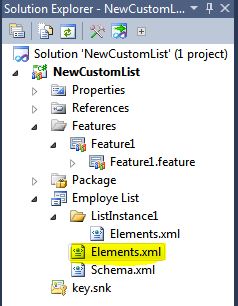
From solution explorer under the list instance open Element.xml file


Click on image to zoom


Modify Element.xml

Give relevant Title, description

Give Templatetype="100" for custom list

Give feature ID for custom list type 100 = 00BFEA71-DE22-43B2-A848-C05709900100

feature ID you can find from here

after all modification your xml look like this

Click on image to zoom


Now Select Element.xml from solution explorer under the Employee List

Click on image to zoom


Modify XML File Add field (Give new Guid - create Guid From Guid Generator)

Add Content Type (Give new Guid - create Guid From Guid Generator remove hyphens and add 0x0100 this is depend upon the list type)

Give FieldRef (use same filed guid)

after all modification your xml look like this


Click on image to zoom


 Now Select Schema.xml from solution explorer

Click on image to zoom


Give Content Type Ref (take content type id from Element.xml)

after modification your code look like this

Click on image to zoom


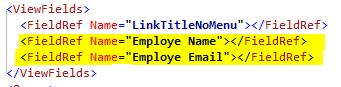
Under the fields add the fields name


Click on image to zoom

Under the view fields modify like this

Click on image to zoom


On header EnableContentTypes="True"

Click on image to zoom


Now Build and deploy your solution ..

Go to Site Action > View All Site Content

You can find your list Employee List


Click on image to zoom


If your List Content type is not configured you can configure like this

Go List Setting > Advanced Settings

Click on image to zoom

Select Allow Management Content Type Yes 

Click on image to zoom

Now Go again list setting 

Under the content types select Add from existing site content types 

Click on image to zoom

 Add your content type from left box 

Click on image to zoom

Now Go again list setting 

Under the content types select select default content type 


Click on image to zoom


Select your content type like below


Click on image to zoom
Now Go to list Add New Item


Click on image to zoom


You can use this content type .. 

Go to Site Action > Site Settings > Site Content types > under the Custom Content Types


Click on image to zoom


Hope this article will help you .. please feel free to contact if you have any query regarding this


Thankyou :)